Set up your AI key
QuestMaster is bring-your-own-key: AI features run on an API key from your own provider account. It’s free on every plan, there’s no markup, and you only pay your provider for what you actually use. You only need a key for the features you want to use.
Which key do I need?
You don’t need all three - pick based on what you want to generate:
| Text — NPCs, items, factions, modules, recaps, DM chat, tactics | Claude (recommended), Gemini, or OpenAI |
| Images — battle maps, portraits, scene art | OpenAI or Google (Imagen) |
Claude (Anthropic)
Text generation - NPCs, items, factions, modules, session recaps, the DM chat assistant, and combat tactics. The best default for worldbuilding text.
- 1
Go to platform.claude.com/dashboard and sign in (or create a free account).
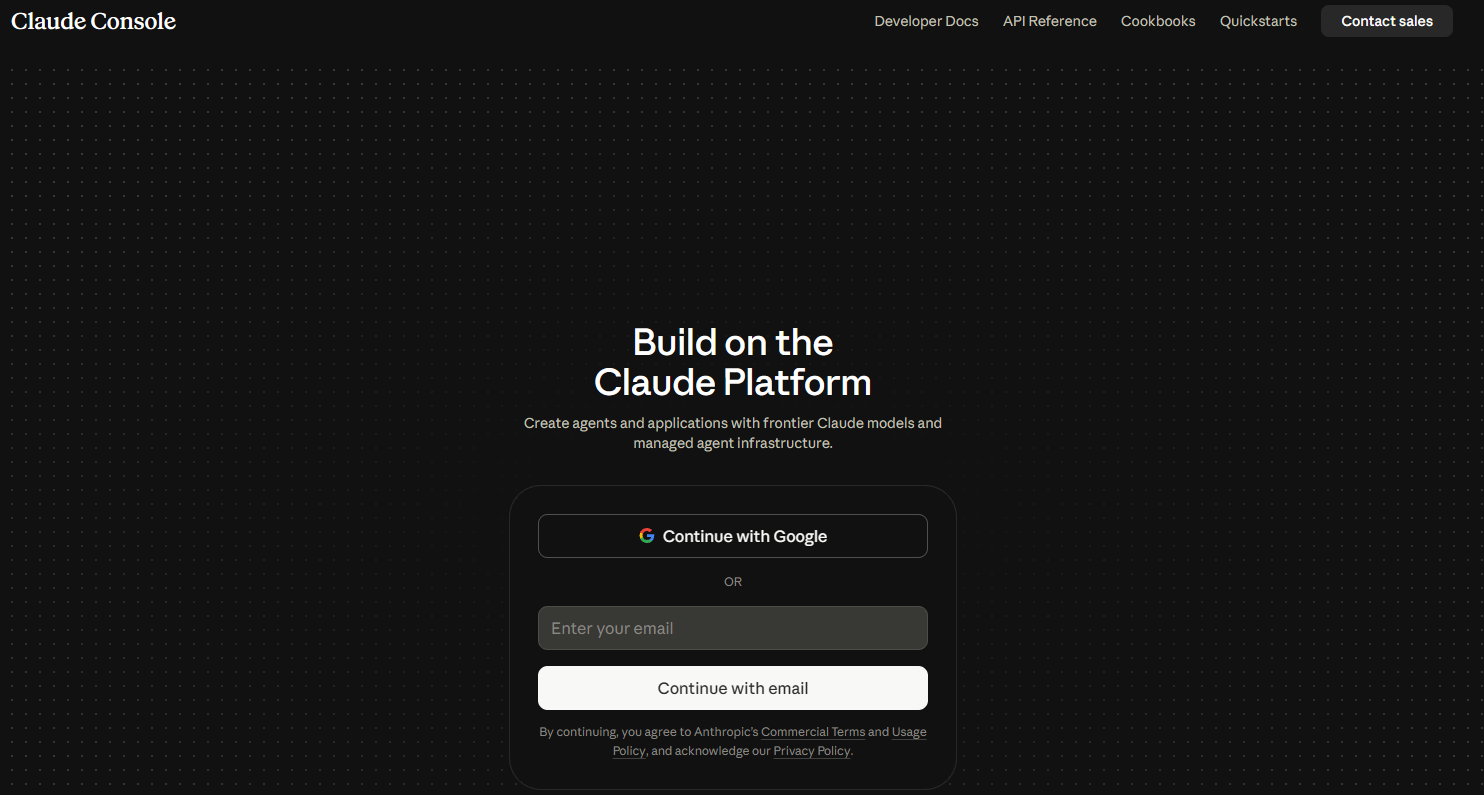
Claude Developer Platform home / sign-in - 2
Add billing before creating a key: open Settings → Billing (or 'Plans & Billing'), add a payment method, and purchase a small amount of credits.
A key won't generate anything until the account has credits. $5-$10 goes a long way.
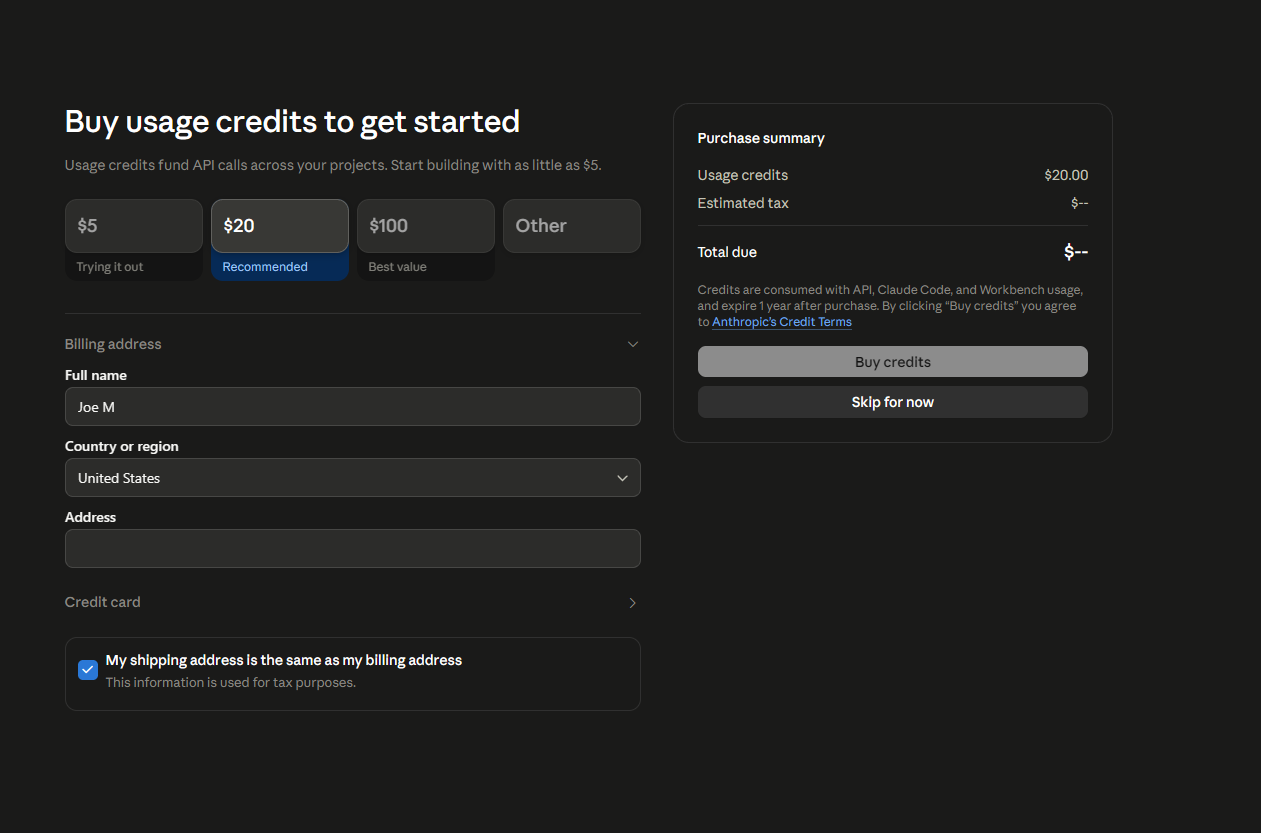
Settings → Billing → add payment method / buy credits - 3
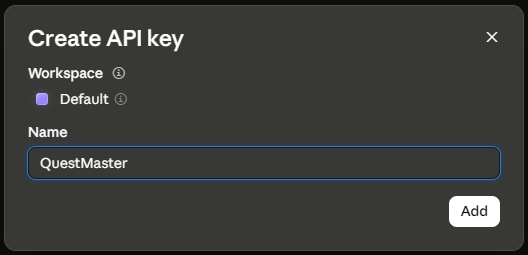
Open API Keys in the left sidebar, then click Create Key.
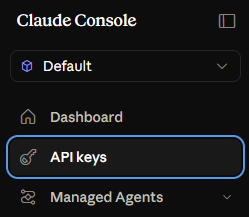
API Keys in the sidebar → Create Key (1 of 2) 
Create Key dialog (2 of 2) - 4
Name it 'QuestMaster', create it, and copy the key immediately - it starts with sk-ant- and is shown only once.
If you lose it, just delete it and create a new one.
The newly created key with a Copy button - 5
In QuestMaster, open Account ▸ API keys, paste the key under Claude, and click Save. Then pick it as your model under the same page.
Sanity check: the key should start with
sk-ant-.
OpenAI
Image generation - battle maps, NPC/character portraits, and scene art (gpt-image-1). Also available as a text-generation option.
- 1
Go to platform.openai.com and sign in (or create an account).
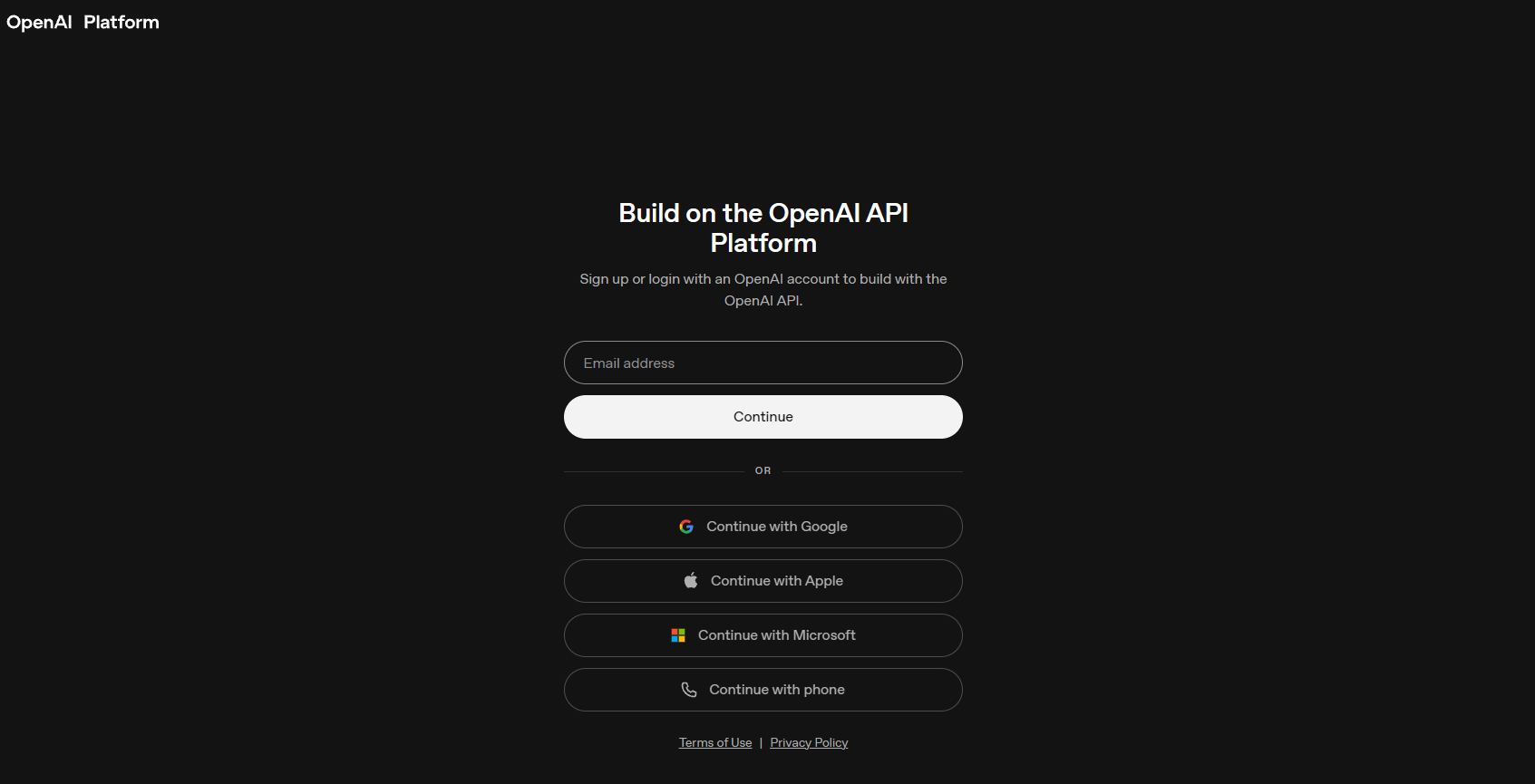
OpenAI platform / sign-in - 2
Add billing first: Settings → Billing → add a payment method (and optionally pre-buy credits or set a monthly limit).
New OpenAI accounts must add billing before a key will work.
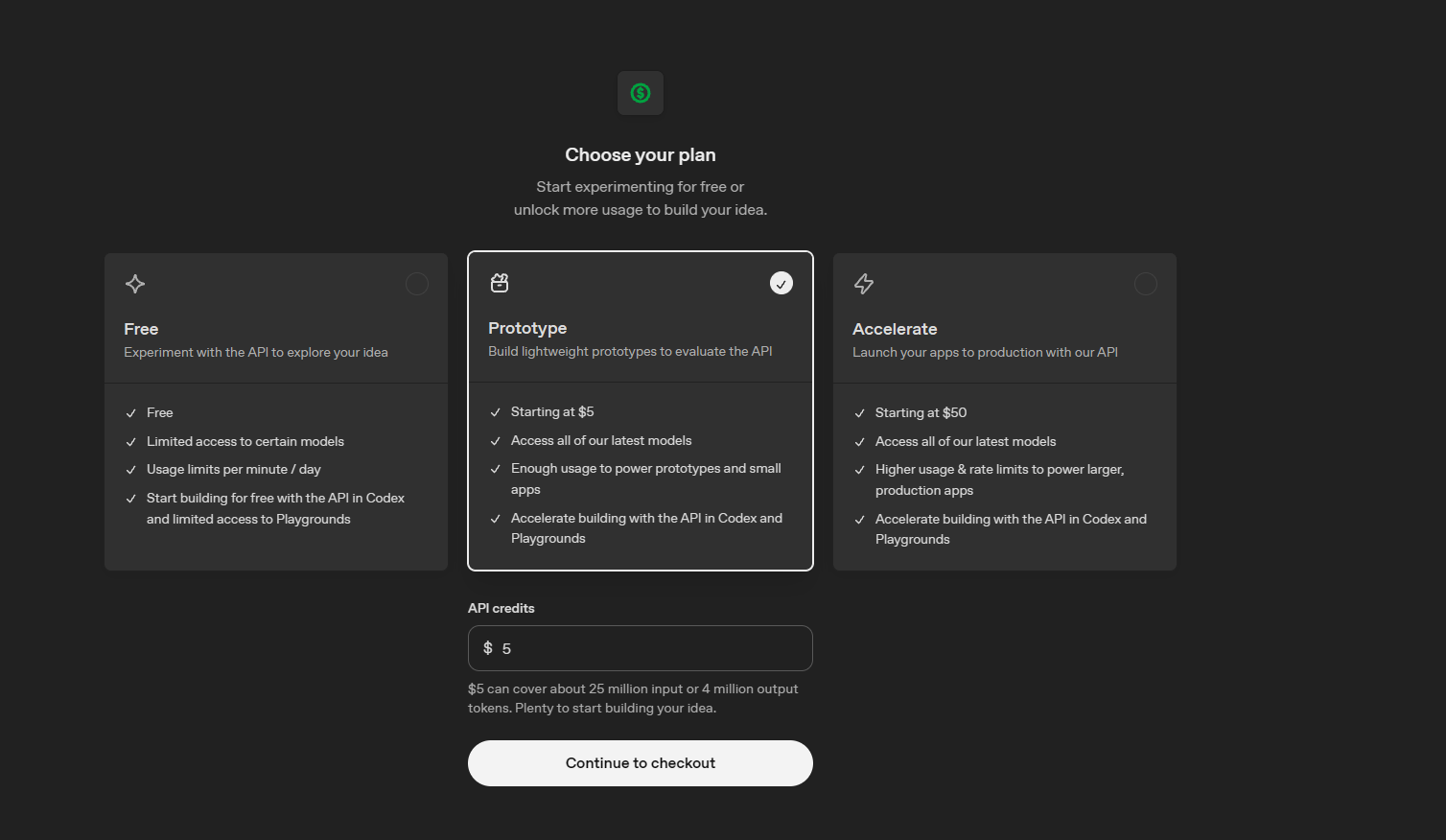
Settings → Billing (1 of 2) 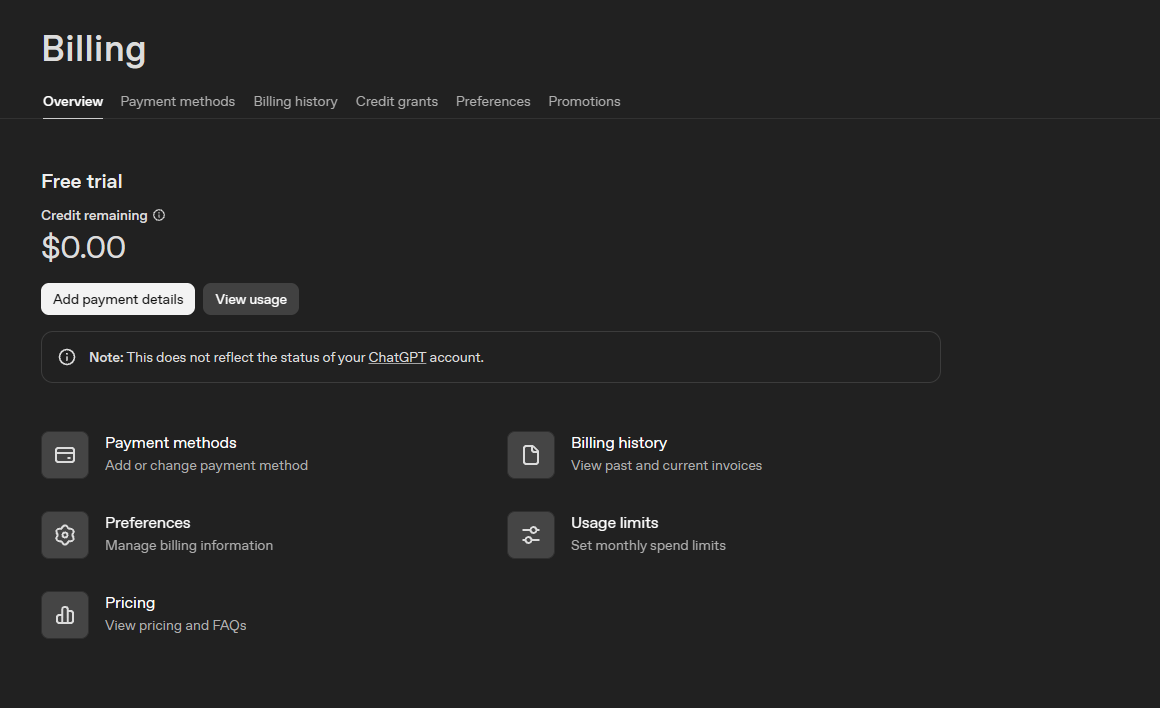
Add a payment method (2 of 2) - 3
Open the API keys page (Dashboard → API keys) and click Create new secret key.
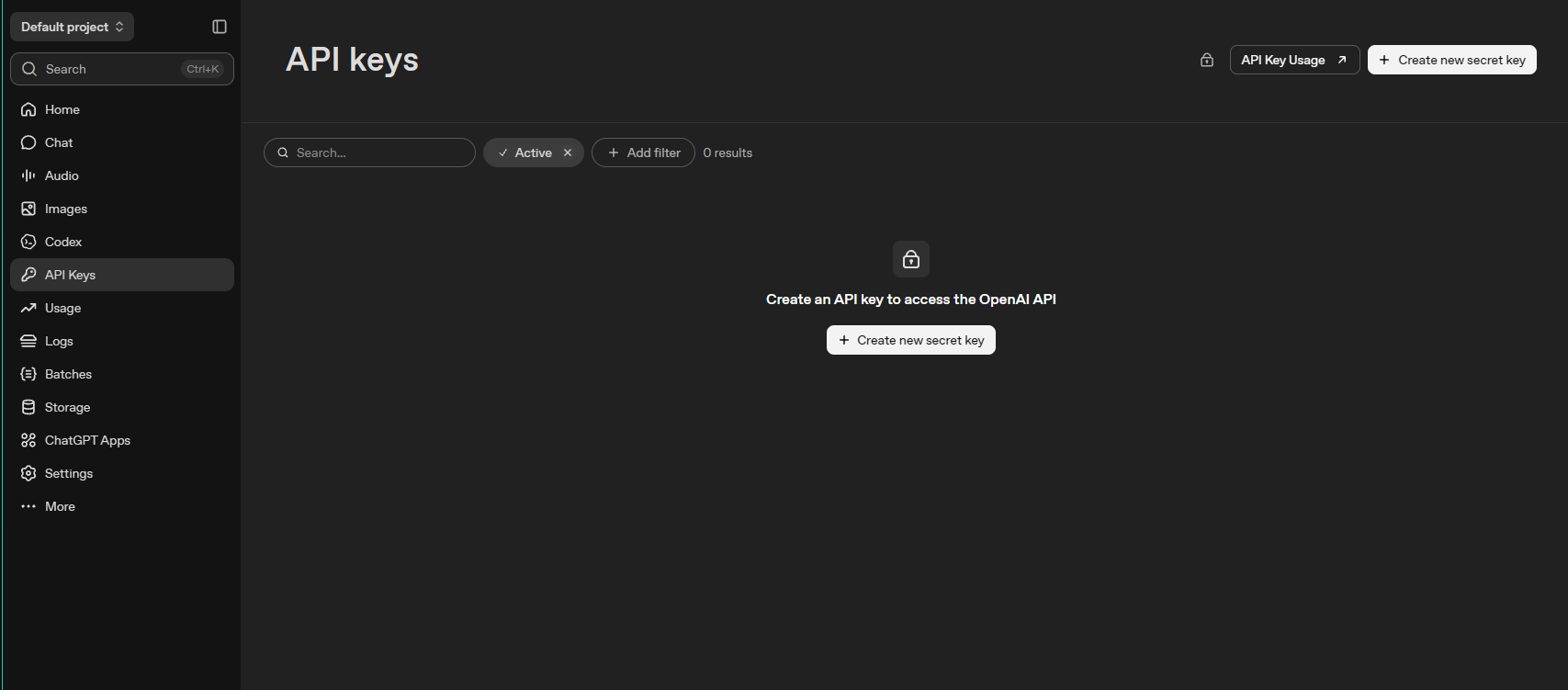
API keys → Create new secret key - 4
Name it 'QuestMaster', create it, and copy the key - it starts with sk- and is shown only once.
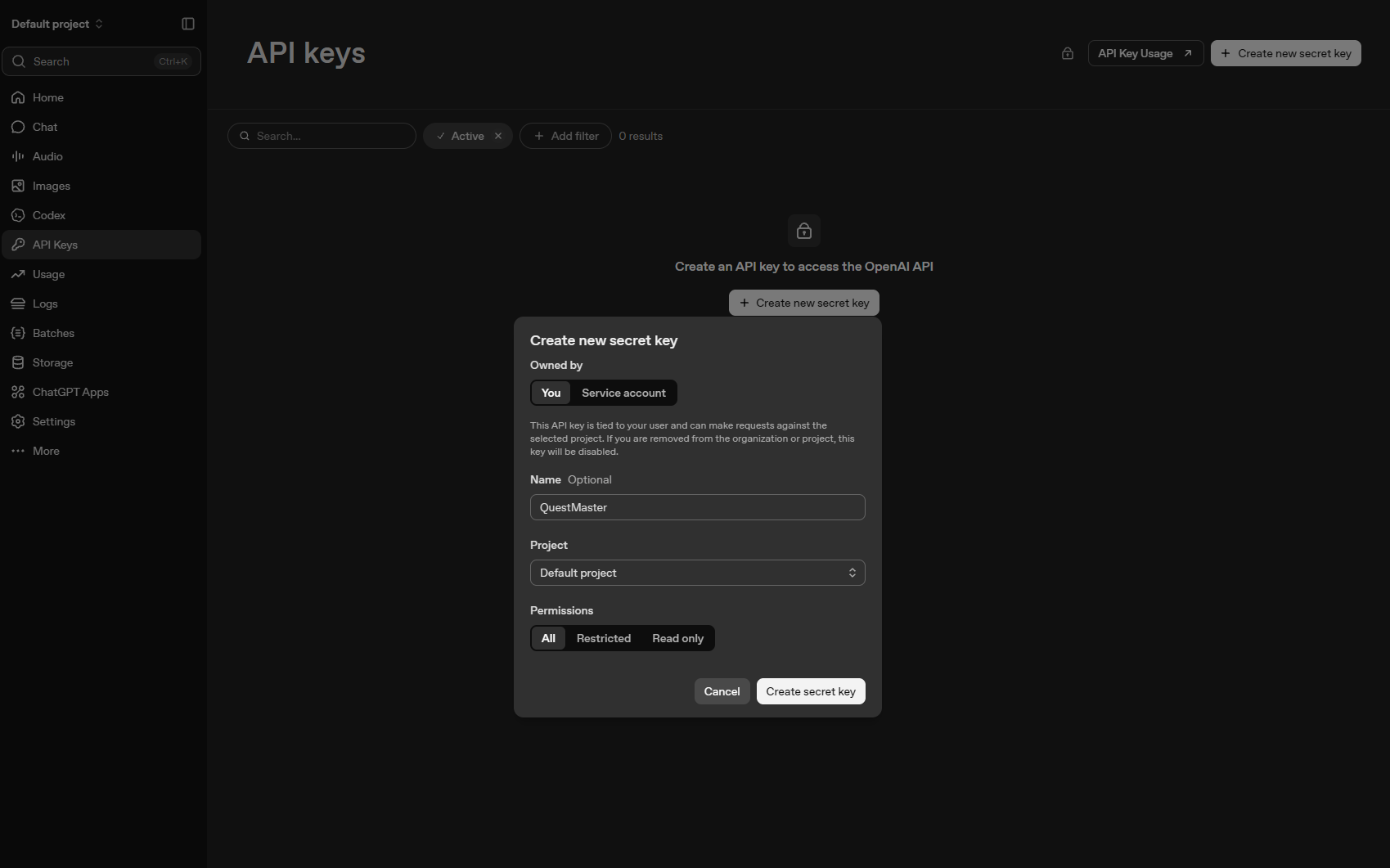
The created secret key with Copy - 5
In QuestMaster, open Account ▸ API keys, paste the key under OpenAI, and click Save. Then pick it as your model under the same page.
Sanity check: the key should start with
sk-.
Gemini (Google)
Text generation (an alternative to Claude) and image generation via Imagen. Has a usable free tier to start.
- 1
Go to aistudio.google.com and sign in with your Google account.
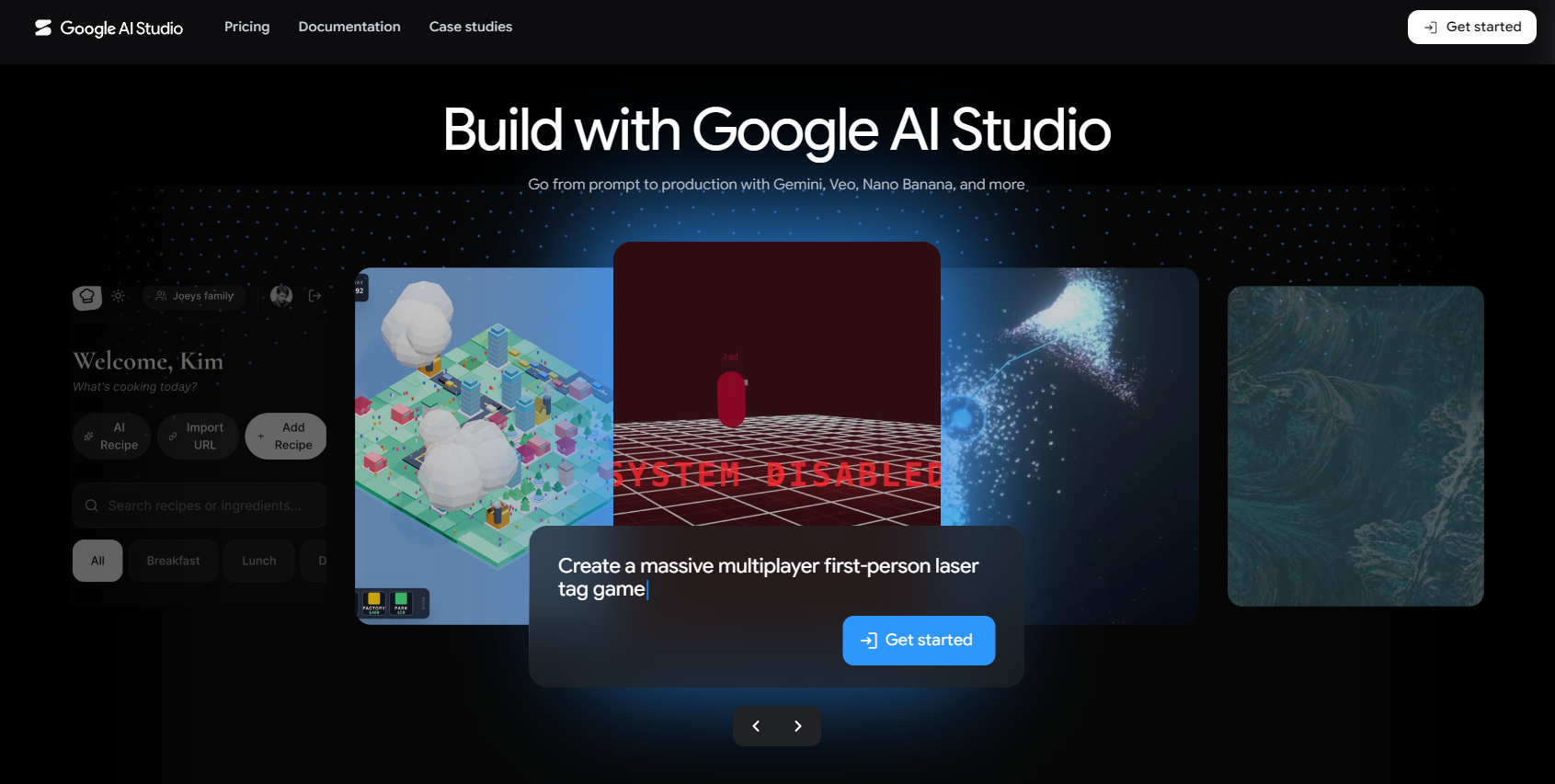
Google AI Studio home - 2
Click Get API key (key icon / top-left menu).
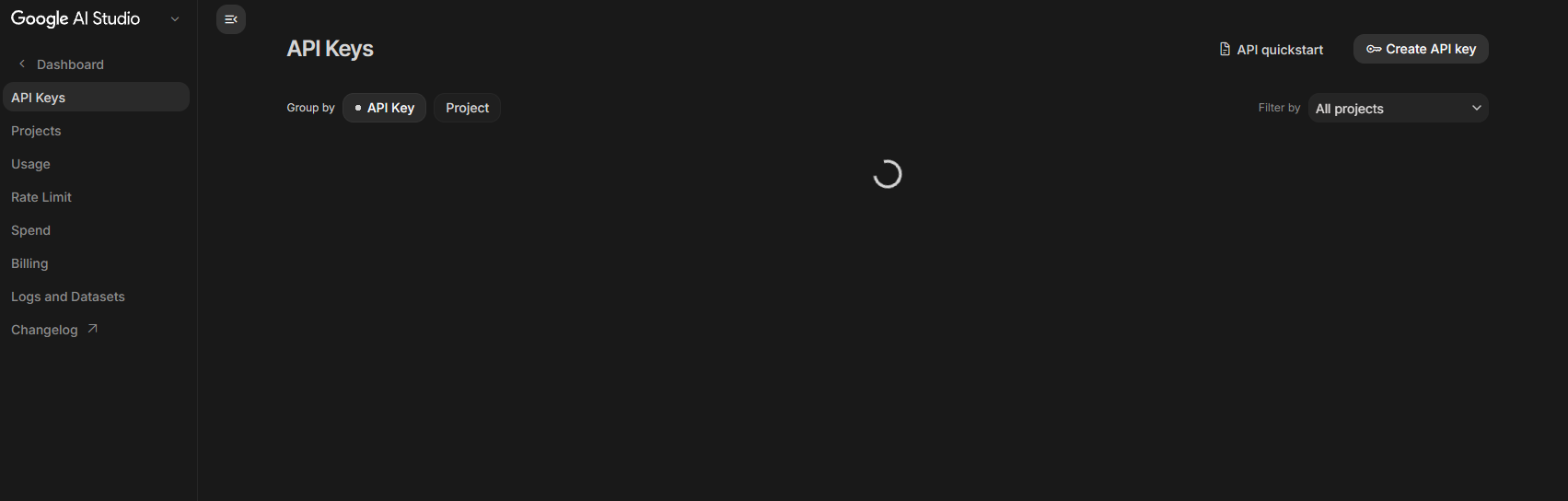
Get API key entry point - 3
Click Create API key, choose or create a Google Cloud project when prompted, then copy the key - it starts with AIza.
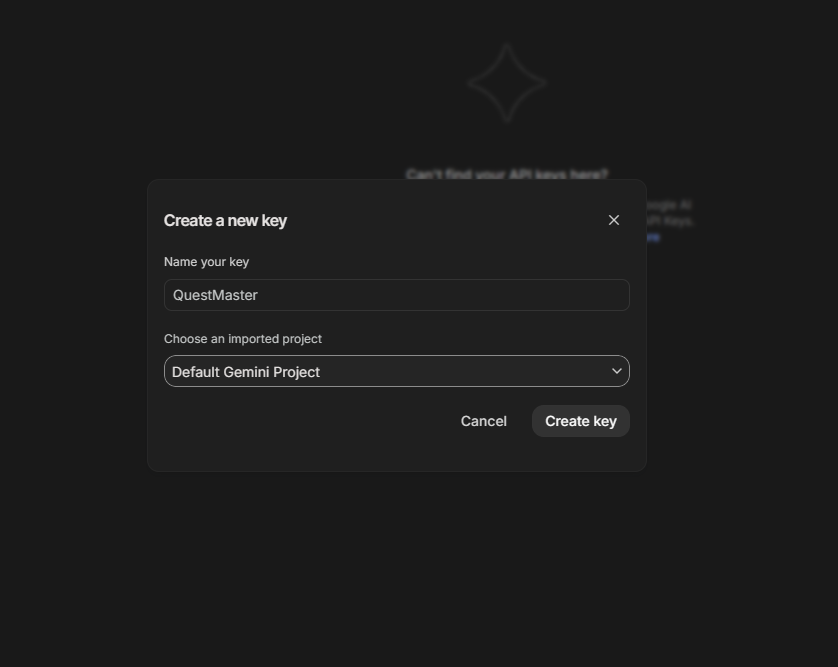
Create API key → pick a project → copy the key - 4
In QuestMaster, open Account ▸ API keys, paste the key under Gemini, and click Save. Then pick it as your model under the same page.
Sanity check: the key should start with
AIza.
Trouble?
If generation says your key is missing or invalid, double-check it was saved for the right provider and that your provider account has billing/credits enabled (new Anthropic and OpenAI accounts need a payment method before keys work). More in Troubleshooting.